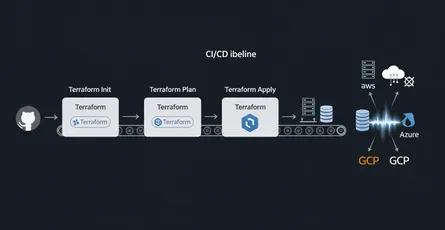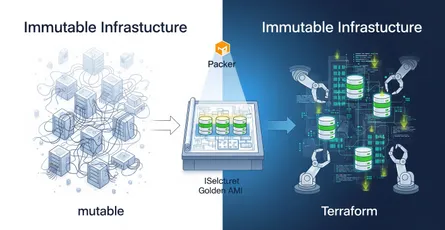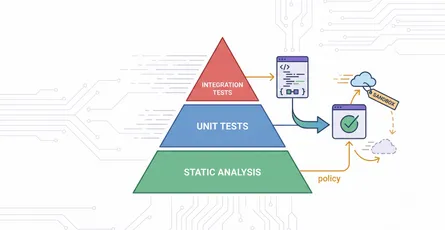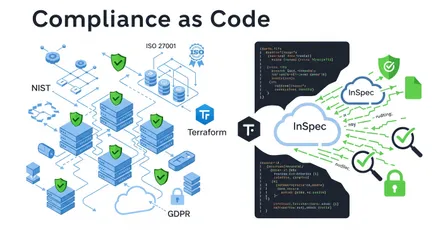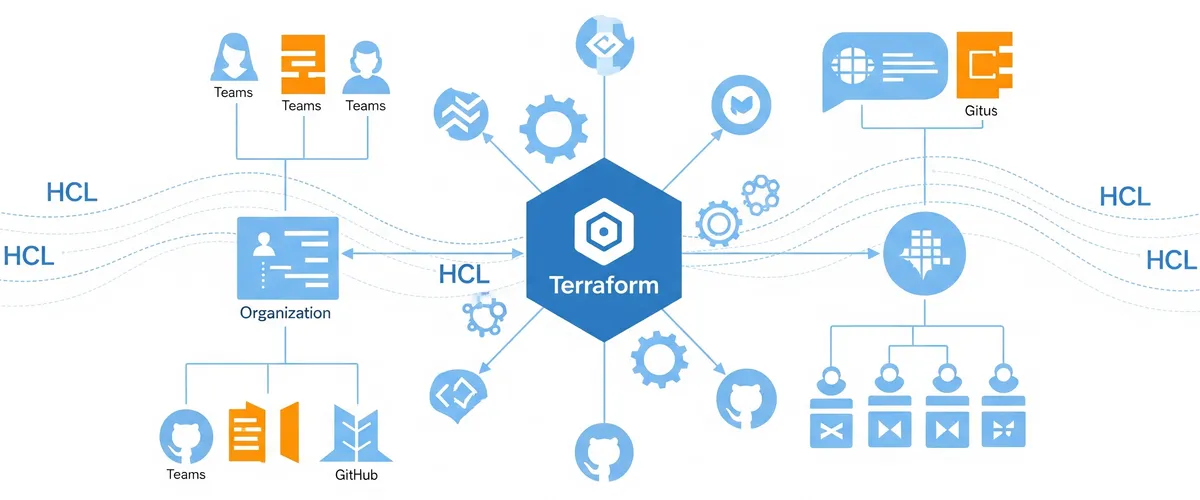
Managing a GitHub organization manually can become increasingly complex as teams grow and projects multiply. For DevOps and DevSecOps engineers, automation is how you keep things consistent and cut down human error. That’s where Terraform, a popular Infrastructure as Code (IaC) tool, helps. With Terraform you can automate the management of your GitHub organization, from user access to team structures and repository configurations. This article covers how Terraform simplifies GitHub organization management, with real-world examples.
What is Terraform, and why use it for GitHub organization management?
Terraform is an open-source IaC tool that lets you define and manage infrastructure in a declarative configuration language. Traditionally used for cloud resources like AWS or Azure, Terraform also has providers for various platforms, including GitHub. By using the GitHub provider, you can automate the management of:
- Repositories
- Teams
- Team memberships
- User permissions
This approach aligns with DevOps principles: your infrastructure configurations, including your GitHub organization setup, become version-controlled, auditable, and reproducible.
Why automate GitHub organization management?
Automation reduces manual intervention, which:
- Keeps things consistent across environments
- Improves security and compliance
- Minimizes the risk of human error
- Speeds up onboarding and offboarding processes
By automating these tasks, you free up time for more strategic activities.
The main Terraform resources for GitHub management
Here are the Terraform resources that matter most for managing a GitHub organization, with a scenario and an example for each.
1. github_membership: managing organization members
This resource manages whether a user is a member or an owner of a GitHub organization. It’s useful for automating user onboarding and setting the right access level.
Scenario: automating onboarding for new engineers
Your team has onboarded a new engineer, Jane, who needs access to the organization as a member. Traditionally, you would manually add her, but Terraform can automate this process:
resource "github_membership" "jane_membership" { username = "jane-doe" role = "member"}Apply this configuration and Jane is added as a member, the same way every time, without you clicking through the UI.
2. github_team_membership: assigning users to teams
This resource lets you manage which users belong to specific teams within your organization.
Scenario: adding developers to specialized teams
Jane needs to be added to the backend-team. Here’s how you do that with Terraform:
resource "github_team" "backend_team" { name = "backend-team" description = "Team responsible for backend services."}
resource "github_team_membership" "jane_backend" { team_id = github_team.backend_team.id username = "jane-doe" role = "member"}Jane gets immediate access to the repositories and workflows tied to the backend team.
3. github_repository: creating and configuring repositories
This resource manages the creation and configuration of GitHub repositories.
Scenario: launching a new microservice
Your team is tasked with developing a new microservice called order-service. With Terraform, you can automate repository creation:
resource "github_repository" "order_service" { name = "order-service" description = "Handles order processing and management." visibility = "private"}Every repository comes out with the same settings, and the setup takes seconds.
4. github_team_repository: managing team access to repositories
This resource links teams to repositories and defines their access levels.
Scenario: granting the backend team access to the order-service repository
To give the backend team access to the order-service repository, use the following configuration:
resource "github_team_repository" "backend_order_access" { team_id = github_team.backend_team.id repository = github_repository.order_service.name permission = "push"}The backend team now has the permissions it needs to contribute to the repository.
5. github_branch_protection: enforcing branch protection rules
This resource manages branch protection rules to enforce policies on specific branches.
Scenario: enforcing branch protection on the main branch
To protect the main branch of the order-service repository, you can configure branch protection as follows:
resource "github_branch_protection" "main_branch_protection" { repository_id = github_repository.order_service.name pattern = "main"
required_status_checks { strict = true contexts = ["ci/circleci"] }
enforce_admins = true required_pull_request_reviews { dismiss_stale_reviews = true require_code_owner_reviews = true required_approving_review_count = 2 }}Changes to the main branch now go through a rigorous review before anyone can merge them.
Using GitHub PRs and the CODEOWNERS feature for an approval flow
You can improve your GitHub management workflow by combining the pull request process with the CODEOWNERS file. The CODEOWNERS file specifies which team members must approve changes to specific parts of a repository.
Scenario: requiring backend team approval for critical code
Define a CODEOWNERS file to require backend team approval for changes in the src/backend/ directory:
# CODEOWNERS filesrc/backend/ @backend-teamAny change to the src/backend/ directory is now automatically flagged for review by the @backend-team, which helps with code quality and security.
How to get started with Terraform for GitHub
Step 1: Install Terraform
First, you need to install Terraform on your machine. You can download it from the official Terraform website. Follow the installation instructions for your operating system.
Step 2: Configure the GitHub provider
Next, you need to configure the GitHub provider. Create a new directory for your Terraform configuration files and navigate to it. Then, create a main.tf file and add the following configuration:
provider "github" { token = "your_github_token"}Replace "your_github_token" with a personal access token from GitHub. You can generate a token by going to your GitHub account settings, navigating to “Developer settings” > “Personal access tokens,” and creating a new token with the necessary scopes (e.g., repo, admin:org).
Step 3: Define your resources
Write your Terraform configurations using the resources covered in this article. For example, to manage organization members, teams, and repositories, you can add the following configurations to your main.tf file:
resource "github_membership" "jane_membership" { username = "jane-doe" role = "member"}
resource "github_team" "backend_team" { name = "backend-team" description = "Team responsible for backend services."}
resource "github_team_membership" "jane_backend" { team_id = github_team.backend_team.id username = "jane-doe" role = "member"}
resource "github_repository" "order_service" { name = "order-service" description = "Handles order processing and management." visibility = "private"}
resource "github_team_repository" "backend_order_access" { team_id = github_team.backend_team.id repository = github_repository.order_service.name permission = "push"}
resource "github_branch_protection" "main_branch_protection" { repository_id = github_repository.order_service.name pattern = "main"
required_status_checks { strict = true contexts = ["ci/circleci"] }
enforce_admins = true required_pull_request_reviews { dismiss_stale_reviews = true require_code_owner_reviews = true required_approving_review_count = 2 }}Step 4: Initialize Terraform
Before applying your configuration, you need to initialize Terraform. This step downloads the necessary provider plugins and prepares your working directory:
terraform initStep 5: Plan and apply the configuration
Run the following commands to see a preview of the changes Terraform will make and then apply those changes:
terraform planterraform applyThe plan command shows you the actions Terraform will take without making any changes. The apply command applies the changes to your GitHub organization.
Step 6: Verify the changes
After applying the configuration, verify that the changes have been made in your GitHub organization. Check that the new members, teams, repositories, and branch protection rules have been created as expected.
Step 7: Manage state
Terraform keeps track of your infrastructure’s state in a file called terraform.tfstate. Terraform needs this file to manage your resources correctly. Make sure to store it securely and consider using a remote backend (e.g., AWS S3, Terraform Cloud) for better collaboration and state management.
Step 8: Update and destroy resources
To update your resources, modify your .tf files and run terraform plan and terraform apply again. To destroy the resources managed by Terraform, run:
terraform destroyThis command removes all the resources defined in your configuration.
By following these steps, you can manage your GitHub organization with Terraform and keep it consistent, secure, and able to grow.
Pros and cons of using Terraform for GitHub management
Pros:
- Automation: Saves time and keeps every repository and team consistent.
- Version control: Tracks changes to your GitHub organization setup.
- Scalability: Easily manage large organizations with multiple teams and repositories.
- Security: Reduces human error and enforces compliance.
Cons:
- Learning curve: Requires knowledge of Terraform and HCL.
- Initial setup effort: Setting up configurations can take time.
- Limited real-time feedback: Debugging issues can be slower than manual updates.
Conclusion
Using Terraform to manage your GitHub organization is a smart move for DevOps and DevSecOps engineers who want simpler workflows and stronger security. Whether you’re managing team memberships, repository settings, or user roles, Terraform gives you a solution that scales and leaves an audit trail.
By adopting Infrastructure as Code for GitHub management, you align your practices with modern DevOps principles, and the day-to-day operations get smoother.
References
- Terraform GitHub Provider Documentation, https://registry.terraform.io/providers/integrations/github/latest/docs
- Managing GitHub with Terraform - HashiCorp Learn, https://learn.hashicorp.com/tutorials/terraform/github-actions (Note: While this link mentions GitHub Actions, HashiCorp Learn often has broader GitHub management tutorials.)
- Official Terraform Documentation, https://www.terraform.io/docs/index.html
- GitHub Help: Managing organization security, https://docs.github.com/en/organizations/keeping-your-organization-secure
- GitHub Help: About CODEOWNERS, https://docs.github.com/en/repositories/managing-your-repositorys-settings-and-features/customizing-your-repository/about-code-owners
- Infrastructure as Code: A Guide by HashiCorp, https://www.hashicorp.com/resources/what-is-infrastructure-as-code
github_membershipresource - Terraform Registry, https://registry.terraform.io/providers/integrations/github/latest/docs/resources/membershipgithub_team_repositoryresource - Terraform Registry, https://registry.terraform.io/providers/integrations/github/latest/docs/resources/team_repositorygithub_branch_protectionresource - Terraform Registry, https://registry.terraform.io/providers/integrations/github/latest/docs/resources/branch_protection