---
title: "How to Run an Apache Web Server Using Docker on an AWS EC2 Instance"
lang: "en"
author: "Mohammad Abu Mattar"
canonical: https://mkabumattar.com/post/how-to-run-an-apache-web-server-using-docker-on-an-aws-ec2-instance
---
[Home](/)›[Blog](/blog)›[All Categories](/blog/categories)›[AWS](/blog/categories/aws)
Blog
[Prev in AWSHow to Install WordPress on Amazon Linux 2](/blog/post/how-to-install-wordpress-on-amazon-linux-2)[Next in AWSHow To Setup Bastion Host on AWS using AWS CLI](/blog/post/how-to-setup-bastion-host-on-aws-using-aws-cli)
[AWS](/blog/categories/aws)[EC2](/blog/categories/ec2)[Docker](/blog/categories/docker)[Apache](/blog/categories/apache)[Web Server](/blog/categories/web-server)
# How to Run an Apache Web Server Using Docker on an AWS EC2 Instance
[Mohammad Abu Mattar](/authors/mohammad-abu-mattar)Published: 31 Oct 202205 Mins read07 Mins listen
[Markdown for AI(opens in a new tab)](/post/how-to-run-an-apache-web-server-using-docker-on-an-aws-ec2-instance/index.md "Open the plain-Markdown version of this page, for pasting into an AI tool")
TL;DR
We will learn how to create an AWS EC2 instance using AWS CLI in this tutorial. We will also discover how to set up an AWS EC2 instance so that it functions with the Apache web server. We will also discover how to set up an AWS EC2 instance so that it functions with WordPress.
Series
[AWS Automation](/series/aws-automation)1/6
[NextHow to Create a AWS RDS MySQL Database and Connect to it using MySQL Workbench](/blog/post/how-to-create-a-aws-rds-mysql-database-and-connect-to-it-using-mysql-workbench)
All posts in this series (6)
Blog6
1. [How to Run an Apache Web Server Using Docker on an AWS EC2 InstanceYou are here](/blog/post/how-to-run-an-apache-web-server-using-docker-on-an-aws-ec2-instance)
2. [How to Create a AWS RDS MySQL Database and Connect to it using MySQL Workbench](/blog/post/how-to-create-a-aws-rds-mysql-database-and-connect-to-it-using-mysql-workbench)
3. [How to Install and Configure Node.js on EC2 Instance Amazon Linux 2](/blog/post/how-to-install-and-configure-nodejs-on-ec2-instance-amazon-linux-2)
4. [How to Connect to AWS RDS MySQL Database to EC2 Instance With PHP By Using PDO](/blog/post/how-to-connect-to-aws-rds-mysql-database-to-ec2-instance-with-php-by-using-pdo)
5. [How To Connect A EBS Volume To An Windows EC2 Instance Using Powershell/GUI](/blog/post/how-to-connect-a-ebs-volume-to-an-windows-ec2-instance-using-powershell-gui)
6. [Scaling Up, Staying Strong: Hands-On AWS CloudFormation Techniques for Building Resilient and Scalable Systems](/blog/post/scaling-up-staying-strong-hands-on-aws-cloudformation-techniques-for-building-resilient-and-scalable-systems)
### How to Run an Apache Web Server Using Docker on an AWS EC2 Instance
Contents
[Introduction](#introduction)[Prerequisites](#prerequisites)[Setup and configure Docker to run an Apache web server on an AWS EC2 instance](#setup-and-configure-docker-to-run-an-apache-web-server-on-an-aws-ec2-instance)[Step 1: install Docker on the AWS EC2 instance](#step-1-install-docker-on-the-aws-ec2-instance)[Step 2: start the Docker service](#step-2-start-the-docker-service)[Step 3: add the `ec2-user` to the Docker group](#step-3-add-the-ec2-user-to-the-docker-group)[Step 4: run the Apache web server using Docker](#step-4-run-the-apache-web-server-using-docker)[Step 5: test the Apache web server](#step-5-test-the-apache-web-server)[Step 6: edit the web page in the Docker container](#step-6-edit-the-web-page-in-the-docker-container)[Step 7: stop the Docker container](#step-7-stop-the-docker-container)[Step 8: restart the Docker container](#step-8-restart-the-docker-container)[Step 9: remove the Docker container](#step-9-remove-the-docker-container)[Step 10: remove the Docker image](#step-10-remove-the-docker-image)[Conclusion](#conclusion)[References](#references)
## [Introduction](#introduction)
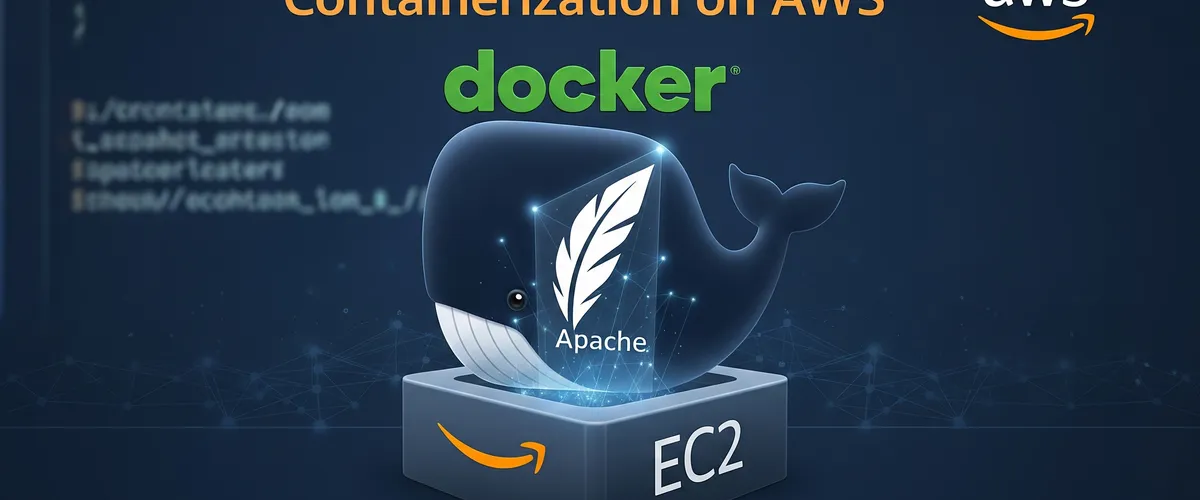
In this post, we will learn how to run an Apache web server using Docker on an AWS EC2 instance. We will use the following tools:
- [AWS EC2](https://aws.amazon.com/ec2/)
- [Docker](https://www.docker.com/)
- [Apache](https://httpd.apache.org/)
## [Prerequisites](#prerequisites)
To follow this tutorial, you will need:
- An AWS account
- An AWS EC2 instance
Note
You can follow this tutorial to create an [AWS EC2 instance Using AWS CLI](/blog/post/how-to-create-an-aws-ec2-instance-using-aws-cli) without using user data, or you can create an AWS EC2 instance using the AWS console.
## [Setup and configure Docker to run an Apache web server on an AWS EC2 instance](#setup-and-configure-docker-to-run-an-apache-web-server-on-an-aws-ec2-instance)
### [Step 1: install Docker on the AWS EC2 instance](#step-1-install-docker-on-the-aws-ec2-instance)
Before we can install Docker on the AWS EC2 instance, we need to update the package list.
Terminal window
```
1sudo yum update -y
```
Then, we need to install Docker on the AWS EC2 instance.
Terminal window
```
1sudo amazon-linux-extras install docker -y
```
### [Step 2: start the Docker service](#step-2-start-the-docker-service)
After installing Docker on the AWS EC2 instance, we need to start the Docker service.
Terminal window
```
1sudo service docker start
```
### [Step 3: add the `ec2-user` to the Docker group](#step-3-add-the-ec2-user-to-the-docker-group)
Try to run the following command to check if the Docker service is running.
Terminal window
```
1docker info
```
Explanation:
- `docker info` - This command will show the information about the Docker service.
If you get the following error:
Terminal window
```
1Client:2 Context: default3 Debug Mode: false4
5Server:6 ERROR: Cannot connect to the Docker daemon at unix:///var/run/docker.sock. Is the docker daemon running?7errors pretty printing info
```
Then, you need to add the `ec2-user` to the Docker group.
Terminal window
```
1sudo usermod -a -G docker ec2-user
```
Exit the SSH session and reconnect to the AWS EC2 instance.
After reconnecting to the AWS EC2 instance, try to run the following command again.
Terminal window
```
1docker info
```
If you get the following output:
Terminal window
```
1Client:2 Context: default3 Debug Mode: false4
5Server:6 Containers: 07 Running: 08 Paused: 09 Stopped: 010 Images: 011 Server Version: 20.10.1712 Storage Driver: overlay213 Backing Filesystem: xfs14 Supports d_type: true15 Native Overlay Diff: true16 userxattr: false17 Logging Driver: json-file18 Cgroup Driver: cgroupfs19 Cgroup Version: 120 Plugins:21 Volume: local22 Network: bridge host ipvlan macvlan null overlay23 Log: awslogs fluentd gcplogs gelf journald json-file local logentries splunk syslog24 Swarm: inactive25 Runtimes: io.containerd.runc.v2 io.containerd.runtime.v1.linux runc26 Default Runtime: runc27 Init Binary: docker-init28 containerd version: 10c12954828e7c7c9b6e0ea9b0c02b01407d3ae129 runc version: 1e7bb5b773162b57333d57f612fd72e3f8612d9430 init version: de40ad031 Security Options:32 seccomp33 Profile: default34 Kernel Version: 5.10.144-127.601.amzn2.x86_6435 Operating System: Amazon Linux 236 OSType: linux37 Architecture: x86_6438 CPUs: 139 Total Memory: 964.8MiB40 Name: ip-172-31-95-171.ec2.internal41 ID: VWQG:27RB:ARKI:V77B:34E2:BRGC:6DDJ:EKSF:VUQP:TX5G:UXVF:Q44442 Docker Root Dir: /var/lib/docker43 Debug Mode: false44 Registry: https://index.docker.io/v1/45 Labels:46 Experimental: false47 Insecure Registries:48 127.0.0.0/849 Live Restore Enabled: false
```
Then, you have successfully installed Docker on the AWS EC2 instance.
### [Step 4: run the Apache web server using Docker](#step-4-run-the-apache-web-server-using-docker)
First, we need to pull the Apache image from Docker Hub.
Terminal window
```
1docker pull httpd
```
Explanation:
- `docker pull` - Pull an image or a repository from a registry like [Docker Hub](https://hub.docker.com/), or from a private registry like [AWS ECR](https://aws.amazon.com/ecr/).
Then, we need to run the Apache web server using Docker.
Terminal window
```
1docker run -dit --name apache -p 80:80 httpd
```
Explanation:
- `docker run` - Run a command in a new container.
- `-dit` - Run the container in the background (`-d`), keep STDIN open (`-i`), and allocate a pseudo-TTY (`-t`).
- `--name` - Assign a name to the container.
- `-p` - Publish a container’s port(s) to the host.
- `httpd` - The image name.
### [Step 5: test the Apache web server](#step-5-test-the-apache-web-server)
To test the Apache web server, we need to get the public IP address of the AWS EC2 instance.
Terminal window
```
1curl http://PUBLIC_IP_ADDRESS
```
Or, we can use the private IP address of the AWS EC2 instance.
Terminal window
```
1curl http://PRIVATE_IP_ADDRESS
```
If you get the following output:
Terminal window
```
1It works!
```
Then, the Apache web server is running successfully.
### [Step 6: edit the web page in the Docker container](#step-6-edit-the-web-page-in-the-docker-container)
To edit the web page, we need to open the `index.html` file, in the `/usr/local/apache2/htdocs` directory.
Before we can edit the `index.html` file, we need to get the container ID of the Apache container.
Terminal window
```
1docker ps
```
Explanation:
- `docker ps` - List containers.
Then, we need to open the Docker container.
Terminal window
```
1docker exec -it CONTAINER_ID /bin/bash
```
Explanation:
- `docker exec` - Run a command in a running container.
- `-it` - Keep STDIN open and allocate a pseudo-TTY, so the shell is interactive.
- `CONTAINER_ID` - The container ID.
- `/bin/bash` - The command to run.
Then, we need to open the `index.html` file, in the `/usr/local/apache2/htdocs` directory.
Terminal window
```
1vi /usr/local/apache2/htdocs/index.html
```
If you get the following output:
Terminal window
```
1bash: vi: command not found
```
Then, you need to install the `vi` editor.
Terminal window
```
1# update the package list2apt-get update -y3
4# upgrade the packages5apt-get upgrade -y6
7# install the vi editor8apt-get install -y vim
```
Then, we need to open the `index.html` file, in the `/usr/local/apache2/htdocs` directory.
Terminal window
```
1vi /usr/local/apache2/htdocs/index.html
```
Then, we need to add the following content to the `index.html` file.
```
12 3 Hello World!
4 5
```
Then, we need to save the `index.html` file.
Terminal window
```
1:wq
```
Then, we need to exit the Docker container.
Terminal window
```
1exit
```
Then, we need to refresh the web page.
Terminal window
```
1curl http://PUBLIC_IP_ADDRESS
```
If you get the following output:
Terminal window
```
12 3 Hello World!
4 5
```
Then, the web page has been updated successfully.
### [Step 7: stop the Docker container](#step-7-stop-the-docker-container)
To stop the Docker container, we need to get the container ID of the Apache container.
Terminal window
```
1# To get the Docker container ID2docker ps3
4# To stop the Apache web server5docker stop CONTAINER_ID6
7# Or, you can use the container name8docker stop apache
```
Or, you can stop all the Docker containers using the following command.
Terminal window
```
1docker stop $(docker ps -a -q)
```
Explanation:
- `docker ps` - List containers.
- `docker stop` - Stop one or more running containers.
### [Step 8: restart the Docker container](#step-8-restart-the-docker-container)
To restart the Docker container by using the container name, we need to run the following command.
Terminal window
```
1docker start apache
```
Explanation:
- `docker start` - Start one or more stopped containers.
### [Step 9: remove the Docker container](#step-9-remove-the-docker-container)
To remove the Docker container, we need to get the container ID of the Apache container.
Terminal window
```
1# To get the Docker container ID2docker ps -a3
4# To remove the Apache web server5docker rm CONTAINER_ID6
7# Or, you can use the container name8docker rm apache
```
Or, you can remove all the Docker containers using the following command.
Terminal window
```
1docker rm $(docker ps -a -q)
```
Explanation:
- `docker ps` - List containers.
- `docker rm` - Remove one or more containers.
### [Step 10: remove the Docker image](#step-10-remove-the-docker-image)
To remove the Docker image, we need to get the image ID of the Apache image.
Terminal window
```
1# To get the Docker image ID2docker images3
4# To remove the Apache web server5docker rmi IMAGE_ID6
7# Or, you can use the image name8docker rmi httpd
```
Or, you can remove all the Docker images using the following command.
Terminal window
```
1docker rmi $(docker images -q)
```
Explanation:
- `docker images` - List images.
- `docker rmi` - Remove one or more images.
## [Conclusion](#conclusion)
In this post, we learned how to run an Apache web server using Docker on an AWS EC2 instance. We also learned how to update and install packages on Docker containers.
Note
If you have any questions, please leave a comment below.
## [References](#references)
- [Docker Official Website](https://www.docker.com/)
- [Docker Hub - httpd (Apache HTTP Server)](https://hub.docker.com/_/httpd)
- [Amazon EC2 User Guide for Linux Instances](https://docs.aws.amazon.com/AWSEC2/latest/UserGuide/concepts.html)
- [Install Docker Engine on Amazon Linux 2](https://docs.aws.amazon.com/AmazonECS/latest/developerguide/docker-basics.html) (Though the post uses `amazon-linux-extras`)
- [Amazon Linux Extras library](https://aws.amazon.com/amazon-linux-2/faqs/#Amazon_Linux_Extras)
- [Apache HTTP Server Project](https://httpd.apache.org/)
- [Docker CLI `run` command reference](https://docs.docker.com/engine/reference/commandline/run/)
- [Docker CLI `pull` command reference](https://docs.docker.com/engine/reference/commandline/pull/)
- [Docker CLI `ps` command reference](https://docs.docker.com/engine/reference/commandline/ps/)
- [Docker CLI `exec` command reference](https://docs.docker.com/engine/reference/commandline/exec/)
- [Docker CLI `stop` command reference](https://docs.docker.com/engine/reference/commandline/stop/)
- [Docker CLI `rm` command reference](https://docs.docker.com/engine/reference/commandline/rm/)
- [Docker CLI `images` command reference](https://docs.docker.com/engine/reference/commandline/images/)
- [Docker CLI `rmi` command reference](https://docs.docker.com/engine/reference/commandline/rmi/)
- [Post-installation steps for Linux - Manage Docker as a non-root user](https://docs.docker.com/engine/install/linux-postinstall/)
Was this useful?
## Tags
[#AWS EC2 Docker](/blog/tags/aws-ec2-docker)[#Apache Docker](/blog/tags/apache-docker)[#Containerization](/blog/tags/containerization)[#Amazon Linux 2](/blog/tags/amazon-linux-2)[#Web Hosting](/blog/tags/web-hosting)[#DevOps](/blog/tags/devops)[#Docker CLI](/blog/tags/docker-cli)
## Share
[Facebook](https://facebook.com/sharer/sharer.php?u=https%3A%2F%2Fmkabumattar.com%2Fblog%2Fpost%2Fhow-to-run-an-apache-web-server-using-docker-on-an-aws-ec2-instance "Share on Facebook")[Twitter](https://twitter.com/intent/tweet/?text=How%20to%20Run%20an%20Apache%20Web%20Server%20Using%20Docker%20on%20an%20AWS%20EC2%20Instance&url=https%3A%2F%2Fmkabumattar.com%2Fblog%2Fpost%2Fhow-to-run-an-apache-web-server-using-docker-on-an-aws-ec2-instance "Share on Twitter")[LinkedIn](https://www.linkedin.com/shareArticle?mini=true&url=https%3A%2F%2Fmkabumattar.com%2Fblog%2Fpost%2Fhow-to-run-an-apache-web-server-using-docker-on-an-aws-ec2-instance&title=How%20to%20Run%20an%20Apache%20Web%20Server%20Using%20Docker%20on%20an%20AWS%20EC2%20Instance&summary=We%20will%20learn%20how%20to%20create%20an%20AWS%20EC2%20instance%20using%20AWS%20CLI%20in%20this%20tutorial.%20We%20will%20also%20discover%20how%20to%20set%20up%20an%20AWS%20EC2%20instance%20so%20that%20it%20functions%20with%20the%20Apache%20web%20server.%20We%20will%20also%20discover%20how%20to%20set%20up%20an%20AWS%20EC2%20instance%20so%20that%20it%20functions%20with%20WordPress.&source=https://mkabumattar.com "Share on LinkedIn")[WhatsApp](https://wa.me/?text=How%20to%20Run%20an%20Apache%20Web%20Server%20Using%20Docker%20on%20an%20AWS%20EC2%20Instance%20https%3A%2F%2Fmkabumattar.com%2Fblog%2Fpost%2Fhow-to-run-an-apache-web-server-using-docker-on-an-aws-ec2-instance "Share on WhatsApp")[Telegram](https://t.me/share/url?url=https%3A%2F%2Fmkabumattar.com%2Fblog%2Fpost%2Fhow-to-run-an-apache-web-server-using-docker-on-an-aws-ec2-instance&text=How%20to%20Run%20an%20Apache%20Web%20Server%20Using%20Docker%20on%20an%20AWS%20EC2%20Instance "Share on Telegram")[Reddit](https://www.reddit.com/submit?url=https%3A%2F%2Fmkabumattar.com%2Fblog%2Fpost%2Fhow-to-run-an-apache-web-server-using-docker-on-an-aws-ec2-instance&title=How%20to%20Run%20an%20Apache%20Web%20Server%20Using%20Docker%20on%20an%20AWS%20EC2%20Instance "Share on Reddit")[Hacker News](http://news.ycombinator.com/submitlink?u=https%3A%2F%2Fmkabumattar.com%2Fblog%2Fpost%2Fhow-to-run-an-apache-web-server-using-docker-on-an-aws-ec2-instance&t=How%20to%20Run%20an%20Apache%20Web%20Server%20Using%20Docker%20on%20an%20AWS%20EC2%20Instance "Share on Hacker News")[Pinterest](https://pinterest.com/pin/create/button/?url=https%3A%2F%2Fmkabumattar.com%2Fblog%2Fpost%2Fhow-to-run-an-apache-web-server-using-docker-on-an-aws-ec2-instance&media=&description=We%20will%20learn%20how%20to%20create%20an%20AWS%20EC2%20instance%20using%20AWS%20CLI%20in%20this%20tutorial.%20We%20will%20also%20discover%20how%20to%20set%20up%20an%20AWS%20EC2%20instance%20so%20that%20it%20functions%20with%20the%20Apache%20web%20server.%20We%20will%20also%20discover%20how%20to%20set%20up%20an%20AWS%20EC2%20instance%20so%20that%20it%20functions%20with%20WordPress. "Share on Pinterest")[Email]()
## Comments
## You might also enjoy
More posts on similar topics
[](/blog/post/how-to-install-and-configure-nodejs-on-ec2-instance-amazon-linux-2)
## [How to Install and Configure Node.js on EC2 Instance Amazon Linux 2](/blog/post/how-to-install-and-configure-nodejs-on-ec2-instance-amazon-linux-2)
- [Mohammad Abu Mattar](/authors/mohammad-abu-mattar)
- [AWS](/blog/categories/aws)
- [EC2](/blog/categories/ec2)
- [Node.js](/blog/categories/nodejs)
- [Linux](/blog/categories/linux)
Introduction Node.js does not exist in the default Amazon Linux 2 repository. So, we need to add the Node.js repository to the system. In this post, we will learn how to install and configure Node
[#Node.js Installation](/blog/tags/nodejs-installation)[#Amazon Linux 2](/blog/tags/amazon-linux-2)[#AWS EC2 Setup](/blog/tags/aws-ec2-setup)+3 tags
[read more](/blog/post/how-to-install-and-configure-nodejs-on-ec2-instance-amazon-linux-2)
[](/blog/post/how-to-connect-to-aws-rds-mysql-database-to-ec2-instance-with-php-by-using-pdo)
## [How to Connect to AWS RDS MySQL Database to EC2 Instance With PHP By Using PDO](/blog/post/how-to-connect-to-aws-rds-mysql-database-to-ec2-instance-with-php-by-using-pdo)
- [Mohammad Abu Mattar](/authors/mohammad-abu-mattar)
- [AWS](/blog/categories/aws)
- [RDS](/blog/categories/rds)
- [EC2](/blog/categories/ec2)
- [PHP](/blog/categories/php)
- [MySQL](/blog/categories/mysql)
- [Database](/blog/categories/database)
Introduction In this post, we will learn how to connect an AWS RDS MySQL database to an EC2 instance with PHP, using PDO. PrerequisitesAWS Account EC2 Instance Amazon Linux 2 RDS MySQL
[#AWS RDS MySQL](/blog/tags/aws-rds-mysql)[#EC2 PHP PDO](/blog/tags/ec2-php-pdo)[#Database Connection](/blog/tags/database-connection)+5 tags
[read more](/blog/post/how-to-connect-to-aws-rds-mysql-database-to-ec2-instance-with-php-by-using-pdo)
[](/blog/post/how-to-connect-a-ebs-volume-to-an-windows-ec2-instance-using-powershell-gui)
## [How To Connect A EBS Volume To An Windows EC2 Instance Using Powershell/GUI](/blog/post/how-to-connect-a-ebs-volume-to-an-windows-ec2-instance-using-powershell-gui)
- [Mohammad Abu Mattar](/authors/mohammad-abu-mattar)
- [AWS](/blog/categories/aws)
- [Windows Server](/blog/categories/windows-server)
- [EC2](/blog/categories/ec2)
- [EBS](/blog/categories/ebs)
- [PowerShell](/blog/categories/powershell)
Introduction In this post, we will learn how to connect an EBS volume to a Windows EC2 instance using PowerShell or the Disk Management GUI, and how to mount the volume on the instance. Prereq
[#AWS EBS](/blog/tags/aws-ebs)[#Windows EC2](/blog/tags/windows-ec2)[#Attach EBS Volume](/blog/tags/attach-ebs-volume)+5 tags
[read more](/blog/post/how-to-connect-a-ebs-volume-to-an-windows-ec2-instance-using-powershell-gui)
[](/blog/post/how-to-install-apache-web-server-on-amazon-linux-2)
## [How to Install Apache Web Server on Amazon Linux 2](/blog/post/how-to-install-apache-web-server-on-amazon-linux-2)
- [Mohammad Abu Mattar](/authors/mohammad-abu-mattar)
- [AWS](/blog/categories/aws)
- [EC2](/blog/categories/ec2)
- [Apache](/blog/categories/apache)
- [Web Server](/blog/categories/web-server)
- [Linux](/blog/categories/linux)
- [Firewall](/blog/categories/firewall)
Introduction In this tutorial, we will learn how to install Apache web server on Amazon Linux 2. We will also learn how to configure Apache web server to serve a simple HTML web page. Prerequi
[#Apache Installation](/blog/tags/apache-installation)[#Amazon Linux 2](/blog/tags/amazon-linux-2)[#HTTPD](/blog/tags/httpd)+4 tags
[read more](/blog/post/how-to-install-apache-web-server-on-amazon-linux-2)
[](/blog/post/how-to-create-a-aws-rds-mysql-database-and-connect-to-it-using-mysql-workbench)
## [How to Create a AWS RDS MySQL Database and Connect to it using MySQL Workbench](/blog/post/how-to-create-a-aws-rds-mysql-database-and-connect-to-it-using-mysql-workbench)
- [Mohammad Abu Mattar](/authors/mohammad-abu-mattar)
- [AWS](/blog/categories/aws)
- [RDS](/blog/categories/rds)
- [MySQL](/blog/categories/mysql)
- [Database Management](/blog/categories/database-management)
- [Cloud Computing](/blog/categories/cloud-computing)
Introduction RDS is a managed service that makes it easy to set up, operate, and scale a relational database in the cloud. It provides cost-efficient and resizable capacity while automating time-c
[#AWS RDS Setup](/blog/tags/aws-rds-setup)[#MySQL Workbench Connection](/blog/tags/mysql-workbench-connection)[#Relational Database](/blog/tags/relational-database)+4 tags
[read more](/blog/post/how-to-create-a-aws-rds-mysql-database-and-connect-to-it-using-mysql-workbench)
[](/blog/post/how-to-install-php-and-mariadb-on-amazon-linux-2)
## [How to Install PHP and MariaDB on Amazon Linux 2](/blog/post/how-to-install-php-and-mariadb-on-amazon-linux-2)
- [Mohammad Abu Mattar](/authors/mohammad-abu-mattar)
- [AWS](/blog/categories/aws)
- [EC2](/blog/categories/ec2)
- [PHP](/blog/categories/php)
- [MariaDB](/blog/categories/mariadb)
- [Apache](/blog/categories/apache)
- [LAMP Stack](/blog/categories/lamp-stack)
- [Linux](/blog/categories/linux)
Introduction In this tutorial we will set up PHP and MariaDB on Amazon Linux 2. We will get PHP working with the Apache web server, secure the MariaDB install, and then connect the two with a smal
[#PHP Installation](/blog/tags/php-installation)[#MariaDB Installation](/blog/tags/mariadb-installation)[#Amazon Linux 2](/blog/tags/amazon-linux-2)+5 tags
[read more](/blog/post/how-to-install-php-and-mariadb-on-amazon-linux-2)
6 related posts